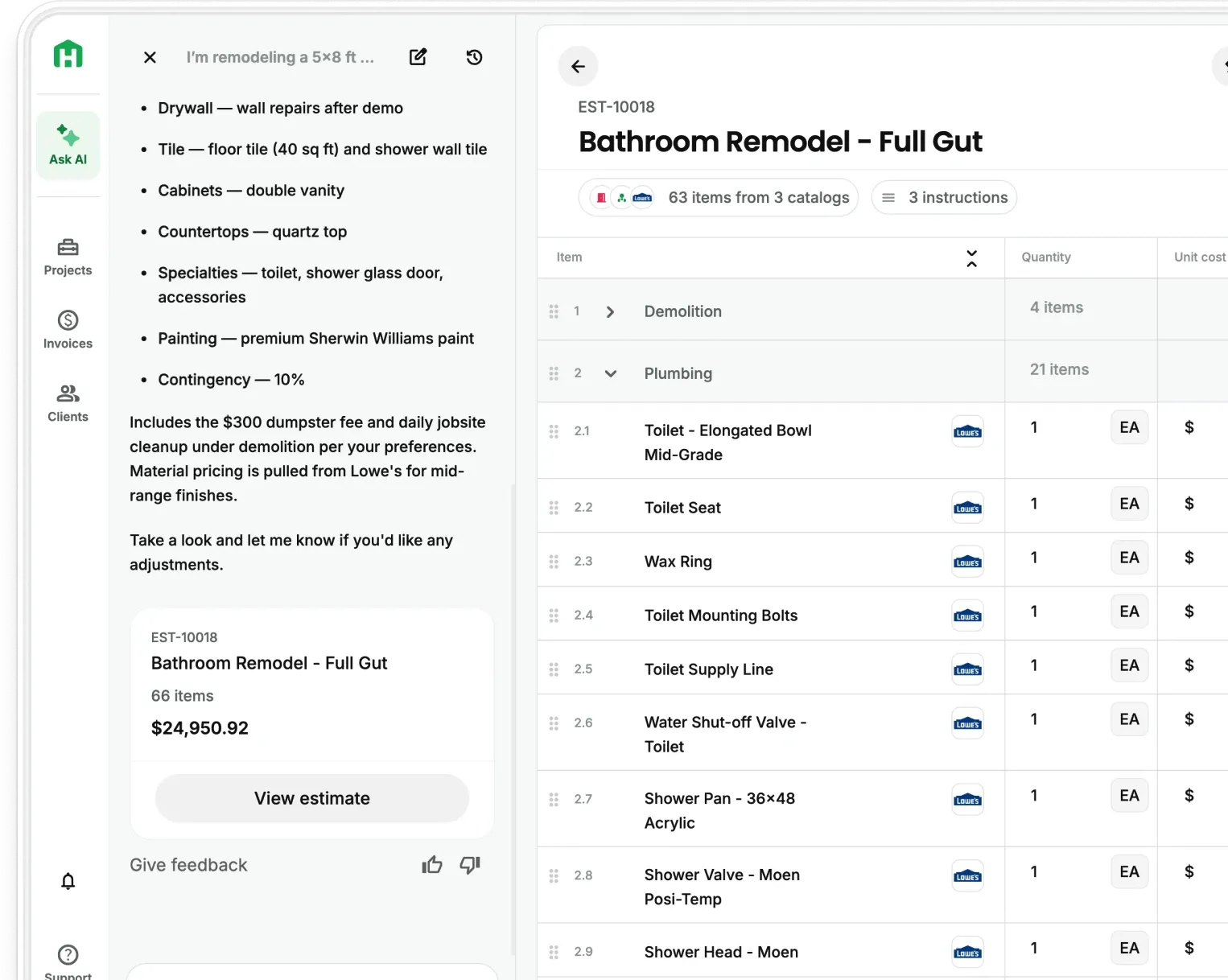
Your project plan only works when the people responsible for carrying it out know what needs to happen next.
Ask your AI Assistant to create tasks from an estimate, schedule, or meeting recording. Assign each one to a teammate or sub, add a due date, and track the work alongside the project information already in Handoff.
Dated tasks appear on the project schedule automatically, while a daily AI summary shows what needs attention before unfinished work delays the rest of the project.
Keep day-to-day work connected to the project
You may already have the project schedule inside Handoff, but the daily assignments often end up somewhere else.
A punch list sits in a group chat. A follow-up call gets mentioned during a meeting and never written down. A teammate misses a due date, and you only find out after the client asks for an update.
When assignments live outside the project, the owner becomes responsible for keeping the plan and the work aligned.
AI Task Management keeps those assignments inside Handoff, alongside the estimate, schedule, files, and people already involved in the project.
Instead of rebuilding the plan in another app, your AI assistant uses the project context already in Handoff to help create the work that moves it forward.
What can Handoff’s AI assistant do with project tasks?
Turn project information into a starting task list
Add a task yourself or ask your AI assistant to create a starting list from an estimate, schedule, or meeting recording.
You review every suggestion before it becomes part of the project. Your AI assistant creates the first draft while you decide what the team should do and when it should happen.
Give every task one owner
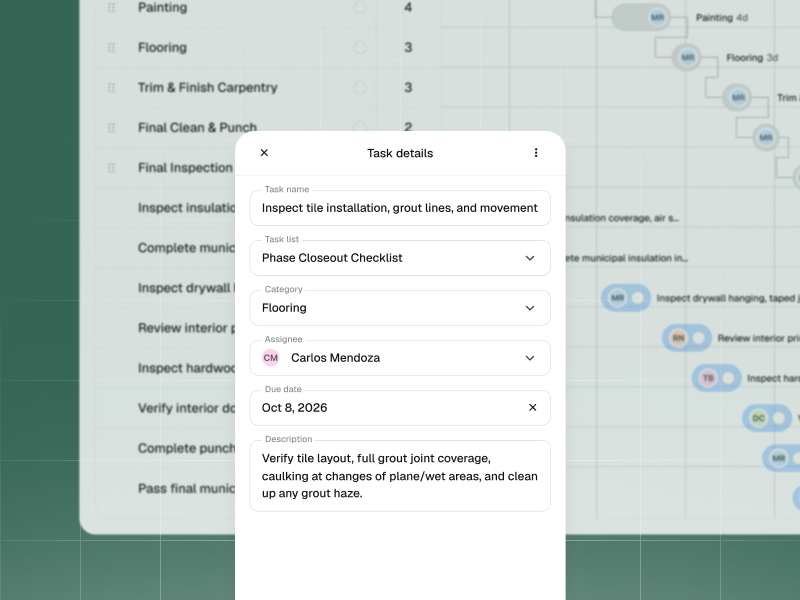
Assign each task to a teammate with a clear due date. One owner means everyone knows who is responsible for moving it forward.
Scale customers can also assign work to subs and vendors through the Sub & Vendor Portal. Subs can view and complete assigned tasks without purchasing a Handoff seat.
Organize work by project or across the business
Create task lists for a specific project or keep company-wide lists for office work, sales follow-ups, and other assignments that are not tied to one address.
Each list shows its completion progress, giving you a quick view of what is moving and what still needs attention.
Connect assignments to the project schedule
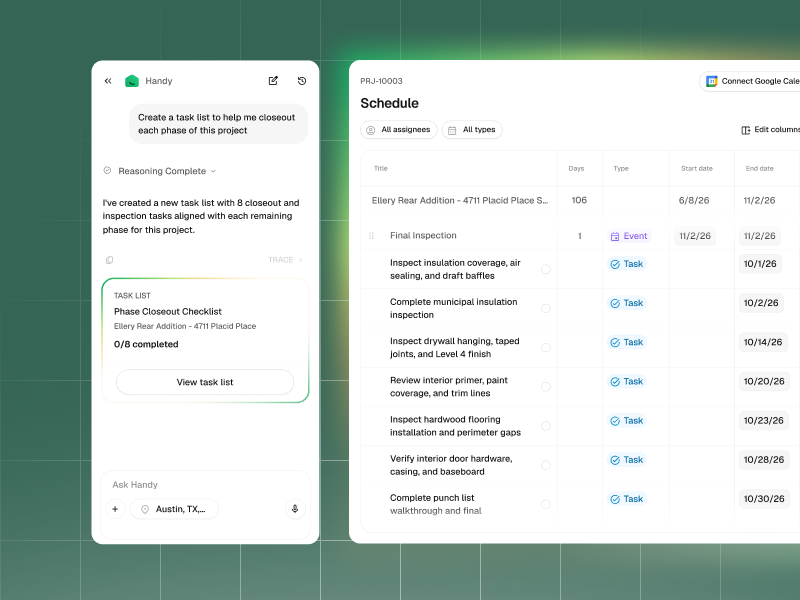
Any task with a due date appears on the project schedule automatically. There is no second calendar to update when an assignment is added.
You can also turn on Google Calendar sync if you want dated tasks to appear there.
Catch overdue work before it creates a larger delay
Assignment notifications let people know when work belongs to them. Overdue reminders bring missed work back to their attention, while a daily AI summary gives you one view of what is due or behind.
That helps you catch a missed item before it holds up another trade, delays closeout, or pushes payment further out.
How to create your first task list
- Open a project and ask your AI Teammate to create tasks from the estimate, schedule, or a meeting recording.
- Review the suggestions and edit anything that needs more detail.
- Assign each task to one teammate or sub and add a due date.
- Turn on Google Calendar sync if you want dated tasks to appear there.
- Check your daily summary for work that is due or overdue.
The more project information you keep in Handoff, the more context your AI assistant can use when helping you plan the work.
Available on Handoff Pro and Scale
The core task workflow, including creating, assigning, tracking, and completing tasks, is available on Pro and Scale.
Scale adds task assignment through the Sub & Vendor Portal, along with API and MCP access for companies connecting task information to other systems.
Turn your project plan into work your team can track with Handoff →
Other FAQs about AI Task Management
Can I assign one task to multiple people?
Not in the first release. Each task has one owner, either a teammate or a sub.
Can I create tasks that are not tied to a project?
Yes. You can create company-wide task lists for office administration, sales follow-ups, and other work that does not belong to a specific project.
Do my subs need a paid Handoff account?
No. Scale customers can assign tasks to subs and vendors through the Sub & Vendor Portal without purchasing an additional seat for them.
Do tasks appear on the project schedule?
Yes. Any task with a due date appears on the project schedule automatically. You can also use the optional Google Calendar sync.
Does completing a task update the project schedule or close a daily log?
No. Completing a task updates the task and its list progress, but it does not automatically complete a schedule phase, event, or daily log.